
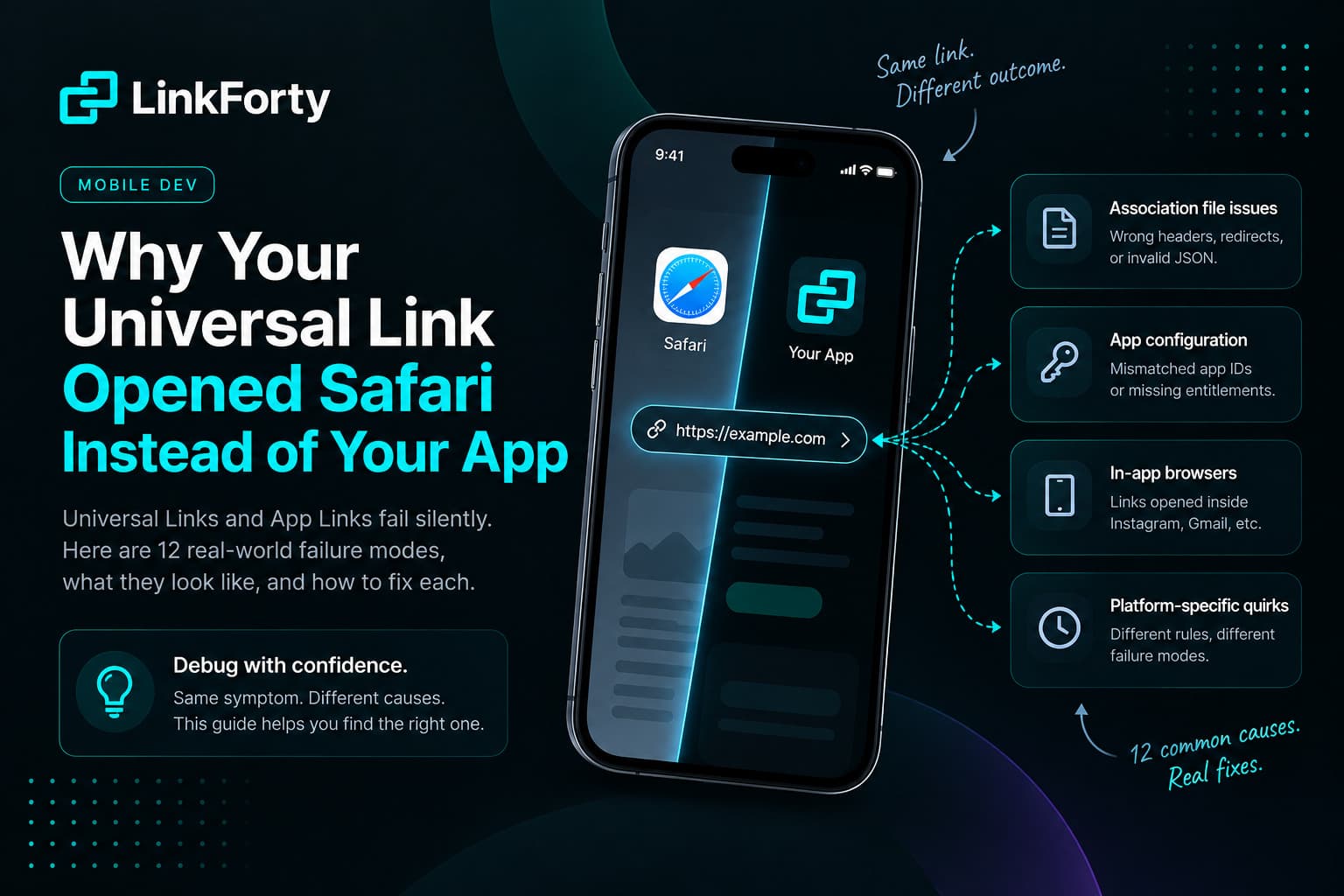
The most frustrating bug in mobile
You configured Universal Links. You tested it. It worked. Then a customer says the link from your email opens Safari, and when you tap the same link from Messages it opens the app just fine. Or it works on your phone and not on your co-founder's. Or it worked yesterday and today it doesn't.
The reason this class of bug is so painful is that both platforms fail silently. When iOS decides not to open your app, it does not log an error, show a dialog, or set a flag you can read. It just opens Safari. Android behaves the same way. So you are left guessing among a dozen root causes that all produce the exact same symptom.
This post is the list we wish we had when we built our first deep linking system. It covers both iOS Universal Links and Android App Links, organized by what you observe rather than by platform, so you can work from the symptom to the cause. If you want the background on how the two systems differ, read Universal Links vs. Android App Links first.
One rule before we start: never test by pasting a URL into the address bar. Typing or pasting a URL into Safari or Chrome will never open the app on either platform. That is by design. Test by tapping a link in Notes, Messages, or an email, and you will save yourself a wasted afternoon.
Symptom A: It never opens the app, for anyone
If the link has never worked on any device, the problem is almost always in the association file or the app's entitlement. Start here.
1. The association file is not being served the way the OS demands
Both platforms fetch a JSON file from your domain to prove you own it. iOS wants /.well-known/apple-app-site-association. Android wants /.well-known/assetlinks.json. Each has requirements that are easy to violate without noticing.
For iOS, the file must be served over HTTPS with a valid certificate, with no redirects of any kind, with a JSON content type, and with no file extension. A CDN rule that redirects example.com to www.example.com, a framework that appends a trailing slash, or a hosting platform that only serves .json files with the right content type will each break it. The file must also be under 128 KB.
For Android, the file needs the .json extension, HTTPS, and the content type application/json. Android is stricter about content type than iOS is.
Diagnose: Fetch the file with curl and read the response headers.
curl -sI https://example.com/.well-known/apple-app-site-association
curl -sI https://example.com/.well-known/assetlinks.json
You want a 200 status, not a 301 or 302, and a content-type of application/json. If you see a redirect or text/html, that is your bug. For iOS you can also run the file through our free AASA Validator, which checks headers, structure, and app IDs together.
Fix: Serve the file from a route that returns it directly, with headers set explicitly. If you use a link platform with custom domains, this is usually handled for you. LinkForty serves both files on every custom domain from the app configuration in your workspace, with no redirects and the correct headers, so this whole category of failure goes away.
2. The app ID in the file does not match the app
On iOS the file identifies your app as TEAMID.bundle.identifier. The Team ID is the ten character identifier from your Apple Developer account, not your app's name and not the App Store ID. On Android the file identifies your app by package name plus the SHA-256 fingerprint of the signing certificate.
Diagnose: Open your Xcode target's Signing & Capabilities tab and compare the Team ID and Bundle Identifier character by character. On Android, compare the package name in the manifest with the file.
Fix: Correct the file. Note that iOS supports both an older appID (singular) and the newer appIDs (array) key. Either works, but a typo like appIds fails silently.
3. The Android fingerprint is your upload key, not your Play App Signing key
This is the single most common App Links failure, and it only shows up in production. When you enroll in Play App Signing, Google re-signs your app with a key it holds. The certificate fingerprint you get from your local keystore is the upload key, and it is not the one on the installed app.
Diagnose: In Play Console, go to Setup, then App signing, and copy the SHA-256 under "App signing key certificate". Compare it to the fingerprint in your assetlinks file. If they differ, you have found it.
Fix: Put the Play App Signing fingerprint in the file. You can list multiple fingerprints in a single entry, so include the upload key too if you sideload debug builds.
4. The domain is not in the app's entitlement
iOS only fetches the association file for domains listed in the app's Associated Domains entitlement, formatted as applinks:example.com. Two things trip people up. First, example.com and www.example.com are different entries. Second, *.example.com matches subdomains but does not match the bare apex domain, so you often need both.
Android has the equivalent problem: every host you want to handle must appear in the intent filter with android:autoVerify="true".
Diagnose: In Xcode, open Signing & Capabilities and read the Associated Domains list. Confirm the entitlement is actually in the built app by inspecting the provisioning profile, since a profile that predates the capability will strip it.
Fix: Add each host explicitly. Regenerate provisioning profiles after enabling the capability. On Android, add each host to the manifest.
5. The path pattern does not match the link you tapped
The association file does not just say "this app owns this domain." It says which paths the app owns. iOS 13 and later use a components array with pattern matching on path, query, and fragment. Older files use a paths array. Android uses pathPrefix, pathPattern, or path in the intent filter.
The classic mistake is declaring /products/* and then tapping /product/123. The second is case: iOS path matching is case sensitive by default. The third is exclusions. A NOT rule or an exclude entry that is too broad will swallow the links you meant to handle.
Diagnose: Write down the exact URL that failed and compare it to each pattern. Pay attention to leading slashes, trailing slashes, and query strings. On iOS, ? and * are wildcards with specific meanings: ? matches a single character and * matches any number.
Fix: Broaden the pattern or fix the link. If your app is the only thing the domain is for, declaring / with a wildcard for everything is the least fragile option. That is what LinkForty does for short link domains, where every path is a link.
Symptom B: It works on some devices and not others
If the configuration is right but behavior varies by device, the cause is state on the device: a cache, a preference, or an old verification result.
6. Apple's CDN has not picked up your new file yet
Since iOS 14, devices do not fetch your association file directly. Apple's CDN fetches it, and devices fetch from the CDN. The CDN refreshes on its own schedule. A change you deploy at noon may not reach devices until the next day.
Diagnose: Fetch the file from Apple's CDN and compare it to yours.
curl -s https://app-site-association.cdn-apple.com/a/v1/example.com
If Apple has the old version, you are waiting on the cache, not on a bug.
Fix: Wait. During development, you can bypass the CDN with alternate mode. Add ?mode=developer to the entitlement (applinks:example.com?mode=developer) and enable Associated Domains Development in the device's Developer settings. This only works for development builds, which is exactly what you want.
7. The device cached a failed or stale verification
Both platforms verify at install time and cache the result. iOS re-fetches the file when the app is installed or updated. Android verifies at install and stores the result until asked to redo it. If your first install happened while the file was broken, fixing the file does nothing for that device until it re-verifies.
Diagnose: On Android, read the verification state directly.
adb shell pm get-app-links com.example.app
You will see each domain with a status such as verified, none, or legacy_failure. On iOS there is no equivalent command, which is one reason the AASA Validator exists.
Fix: Delete and reinstall the app on iOS. On Android, force re-verification.
adb shell pm verify-app-links --re-verify com.example.app
8. The user told the OS to open links in the browser
iOS remembers per-domain choices. If someone once long-pressed a link and chose "Open in Safari", or tapped the small banner at the top of Safari that says "Open in Safari", iOS will keep sending that domain to Safari on that device. Nothing in your app can override it.
Android 12 and later have a per-app setting, "Open supported links", under the app's "Open by default" screen. If a user turned it off, or if an earlier verification failure caused Android to set it to "Ask", links go to the browser.
Diagnose: Ask the user to long-press the link. If the menu offers "Open in [App Name]", the link is configured correctly and the device has a preference set. On Android, check Settings, then Apps, then your app, then Open by default.
Fix: For iOS, the user picks "Open in [App Name]" from the long-press menu, which resets the preference. For Android, they enable "Open supported links". You cannot fix this remotely. You can only fall back gracefully, which is why the web page behind your link matters. More on that below.
9. One host failed verification and took the rest down with it
On Android 11 and earlier, verification is all or nothing for the app. If your intent filter lists three hosts and the assetlinks file on one of them is missing, none of the three will open the app. Android 12 and later verify per domain, which makes this less catastrophic but more confusing, because some links work and others do not.
Diagnose: Run pm get-app-links and look for any domain that is not verified. Then curl that domain's assetlinks file.
Fix: Every host in the intent filter needs a valid file. If a host is no longer yours, remove it from the manifest.
Symptom C: It works from some apps and not others
This is the category that generates the most support tickets, because it looks like a bug in your app and it is not.
10. The link was tapped inside an in-app browser
Instagram, Facebook, TikTok, LinkedIn, and many email clients open links in their own embedded browser. On iOS, those are typically built on WKWebView, which does not hand a tap off to the Universal Links system. On Android, the embedded browser may or may not support App Links depending on how it is built. In both cases, the app is installed, the configuration is correct, and the link still opens in the embedded browser.
Gmail deserves its own mention because it is where most transactional links get tapped. Gmail's in-app browser on iOS does not reliably trigger Universal Links, so the "it works from Messages but not from my email" report is almost always this.
Diagnose: Ask where the link was tapped. If the answer is a social app or an email client, you have your cause. Confirm by copying the link into Notes and tapping it there.
Fix: You cannot make the embedded browser hand off. What you can do is make sure the page the link lands on does something useful. That page can detect the embedded browser from the user agent, show an "Open in app" button that uses a custom URL scheme, or explain how to open the page in the system browser. The LinkForty redirect handler does this detection at the edge: when it sees an in-app browser on a device where the app is likely installed, it sends the user to the web fallback instead of the store, so the fallback page gets a second chance to fire the app open. Regular browsers get the store URL, because if the app were installed the OS would have already opened it.
11. The link went through a redirect
Universal Links are evaluated once, against the URL the user tapped. If that URL is a short link on go.example.com that redirects to app.example.com, iOS checks go.example.com for an association file and never looks at the destination. The user lands in Safari on the final page.
The same thing happens with JavaScript navigation. A window.location change or a meta refresh inside a page does not count as a tap and will not open the app.
Diagnose: Curl the link with -I and look for a Location header. If the tapped domain redirects before reaching your associated domain, that is the cause.
Fix: Associate the domain the user actually taps. If you run a short link domain, it needs its own association file and its own entry in the entitlement. This is the core reason link platforms exist: the short link domain is the one that has to be associated, and someone has to serve the files, handle the redirect, and decide what to do when the OS did not open the app.
12. The link was tapped on a page from the same domain
Safari has a rule that surprises everyone: if the user is already on example.com and taps a link to example.com/product/123, Safari treats it as ordinary web navigation and does not open the app. Universal Links fire when the tap crosses from another app or another domain into yours. This is intentional, so that a user who chose to browse your site is not yanked into the app on every click.
Diagnose: Note where the tap originated. If it was on your own site, this is the behavior.
Fix: Show a Smart App Banner or a custom "Open in app" button on the web page, using a custom URL scheme. Do not expect the Universal Link to do it.
A diagnostic order that saves time
When someone reports a deep link failure, run the checks in this order. Each step rules out an entire category.
- Ask where they tapped. Social app or email client points to mode 10. Your own website points to mode 12. The address bar never opens the app.
- Curl both association files with
-I. Redirects, wrong content type, or a 404 point to mode 1. - Validate the file contents. App IDs, fingerprints, and path patterns point to modes 2, 3, and 5. The AASA Validator covers the iOS side.
- Curl the link itself with
-I. ALocationheader pointing to a different domain is mode 11. - Check the entitlement and manifest. Missing hosts point to mode 4.
- Check device state. Long-press the link on iOS, or run
pm get-app-linkson Android, to rule out modes 6 through 9.
Design for the case where it fails
Every mode above has a fix, but several of them are outside your control. A user's long-press preference, a social app's embedded browser, and Apple's cache schedule will always be there. That means the app-open path can never be the only path.
The link has to land somewhere that works when the OS does not cooperate. That page should know whether the app is probably installed, offer the right next step for that device, preserve the deep link destination across an install, and record what happened so you can see how often each failure mode hits your users. Building that yourself is a project. It is the thing we built LinkForty to do, and the reason our short links come with in-app browser detection, hosted association files for custom domains, and deferred deep linking so the destination survives a trip through the store.
Universal Links and App Links are the right foundation. Just treat the OS handoff as the happy path and design the fallback with the same care.